Discord Translator Guide: Bots for Text, Live Translation for Voice Chat
Discord translator bots handle text, not voice chat. Compare your options and set up live voice translation in any Discord call in four steps, no bot needed.
Quick answer
Discord has no built-in translator for voice chat, and translator bots only work on text messages. For text channels, a translation bot is the right tool. For voice channels, translate at the microphone instead: HaloVoice turns your speech into another language in real time and sends it into Discord through a virtual microphone, so it works in any server without a bot, admin rights, or permissions.
The short version
Does Discord have a translator?
Not for voice. Discord was designed around the assumption that everyone in a server shares a language, and that assumption still shows. There is no setting that makes a voice channel come out in English for you and in Spanish for the person next to you.
That is why "discord translator" searches end up in two very different places. Most results are translation bots, which read messages in a text channel and post a translated copy. They are useful, and for text they are the right answer. But the moment your group moves into a voice channel to run a raid, a ranked match, a community stage, or a team standup, the bot goes quiet. It was never listening.
So the honest answer has two halves: use a bot for text, and use a live voice translator for voice. The rest of this guide covers both, with most of the space on voice chat, because that is the half almost nobody explains.
Discord translator options compared
There are four realistic ways to get across a language gap on Discord. They are not competitors so much as tools for different channels.
| Option | Text channels | Voice channels | Needs server permissions | Best for |
|---|---|---|---|---|
| Translation bot | Yes | No | Yes, an admin must add it | Multilingual text channels and announcements |
| Copy and paste into a translator app | Yes, slowly | No | No | The occasional one-off message |
| Typing in a side text channel during a call | Workaround | Not really | No | Short calls where speed does not matter |
| Live voice translator on a virtual microphone (HaloVoice) | No | Yes | No | Gaming squads, community calls, and teams that talk in voice |
Why a Discord translator bot cannot translate voice chat
A bot is a guest on the server. It sees the messages it has permission to see, and it can post replies. Translating text fits that model perfectly: message in, translated message out.
Voice is a different problem. To translate a voice channel, something has to hear each speaker, transcribe them, translate the result, and speak it back, all quickly enough that the conversation does not stall. Even if a bot joined the channel and did all of that, it would be one more voice talking over everyone, a few seconds late, with no way to give each listener their own language.
There is also the practical side. Adding a bot takes Manage Server permission. On your own server that is fine. On the forty other servers you are in, such as a game’s official community, a partner’s workspace, or a friend’s private server, you cannot install anything.
- Bots work per server. A voice translator on your own computer works in every server and every DM call.
- Bots need an admin to approve them. A virtual microphone needs nobody’s permission but yours.
- Bots translate what was typed. Voice chat needs what was said, translated while it still matters.
How live voice translation works in Discord
The trick is to stop thinking about Discord at all. Discord does not care where your microphone audio comes from. It takes whatever the selected Input Device gives it and sends that to the channel.
HaloVoice sits in that gap. It listens to your real microphone, translates your speech in real time, and plays the translated voice into a virtual microphone. You pick that virtual microphone as your Input Device in Discord, and from then on everyone in the channel hears you in the language you chose. To Discord it is an ordinary mic, which is why it keeps working with push-to-talk, in DM calls, in stage channels, while you are in a game, and while you share your screen.
Because the translation happens on your machine before the audio reaches Discord, nothing is installed on the server and nobody else has to change a setting to hear you.
Setup
How to set up a Discord voice translator in four steps
You set this up once, in Discord’s user settings, and it follows you to every server. It takes a couple of minutes.
- Step 1: Install HaloVoice for Windows or macOS, then choose the language you speak and the language your teammates should hear.
- Step 2: Click Start Session in HaloVoice so the virtual microphone starts carrying your translated voice.
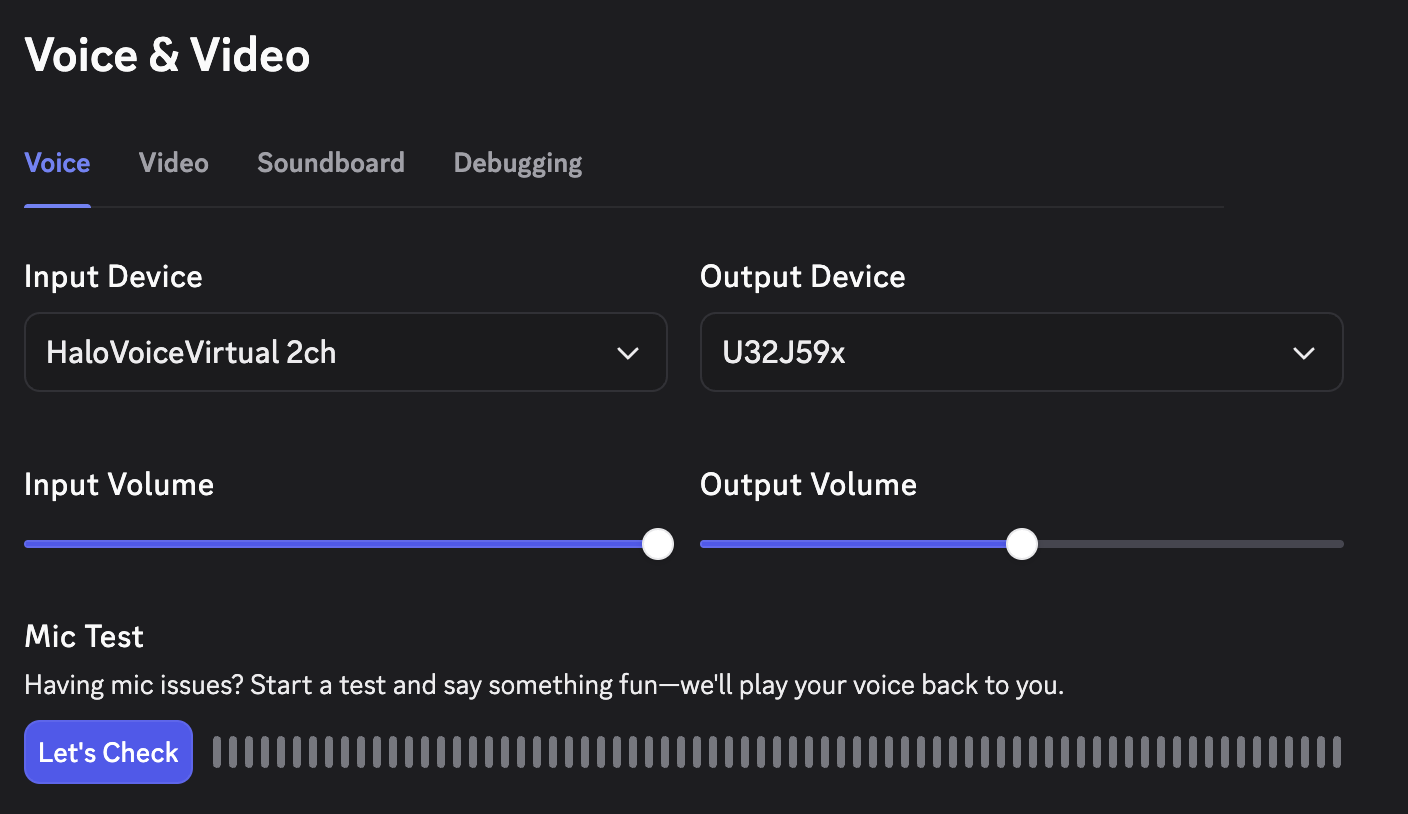
- Step 3: In Discord, open User Settings, go to Voice & Video, and set Input Device to HaloVoiceVirtual 2ch, the HaloVoice virtual microphone.
- Step 4: Join a voice channel and talk. Watch the Discord input meter move when the translation plays, and turn on Hear what others hear in HaloVoice to preview exactly what your channel receives.
Who actually uses a Discord voice translator
Text bots are mostly a community-management tool. Voice translation tends to be personal: one person who wants to be understood by a group. These are the situations where it earns its place.
- International gaming squads. Your duo queue partner is in São Paulo, your raid leader is in Seoul, and callouts in a text channel arrive after the fight is over.
- Community managers and moderators. If you run voice events, AMAs, or office hours for a server with members across several languages, you can address each group in its own language without hiring an interpreter for a thirty-minute call.
- Indie studios, open-source projects, and web3 teams that use Discord as their office. Contributors join voice to unblock something quickly, and the shared language is often nobody’s first.
- Creators with international audiences. A streamer who hangs out in voice with viewers from Japan, Germany, or Brazil can talk to them directly. With voice cloning, the translated speech can still sound like you rather than a stock voice.
- Language learners and exchange servers, where hearing a sentence in both languages is the whole point.
Tips for clean translation in a busy voice channel
Live translation is only as good as the audio it hears. A few habits make a noticeable difference, especially in loud game lobbies.
- Use push-to-talk. It stops keyboard noise and half-sentences from being translated, and it gives the translation a clean start and end.
- Wear a headset. Open speakers feed other people’s voices back into your microphone, and the translator will try to translate them too.
- Speak in complete, short sentences. "Two enemies pushing B, I am rotating" translates better than a stream of fragments.
- Tell the channel you are using a translator. People naturally leave a beat after you speak once they know a translation is coming.
- If teammates hear clipped audio, try turning off Discord’s noise suppression. The translated voice is already clean, and aggressive filtering can cut into it.
- Keep your translation bot for the text channels. The two tools cover different halves of the server and work well side by side.
What live voice translation does not do
It is worth being clear about the limits before you install anything.
HaloVoice translates your own voice on the way out. It does not re-voice everyone else in the channel for you. In a mixed group, each person who wants to be understood runs it on their own computer, which also means each speaker chooses their own target language.
There is a short delay while speech is recognized and translated. It is built for live pacing, so conversation and callouts still work, but it is not instant, and very fast cross-talk will always be harder than turn-taking. Heavy slang and in-jokes can also come out more literal than you meant. Add player names, map callouts, and game terms to the HaloVoice Dictionary so they are recognized correctly.
And it is a desktop app for Windows and macOS. If you only use Discord on your phone, a text translation bot is still your best option today.
Which Discord translator should you use?
Match the tool to the channel. If the language gap in your server lives in text, add a translation bot and you are done. If it lives in voice, no bot will fix it, and the simplest route is to translate at the microphone so Discord never has to know.
HaloVoice has a free plan, so you can test the whole workflow in a real call before deciding whether it belongs in your setup.
- Text channels and announcements: use a translation bot.
- One-off messages: copy and paste into any translator.
- Voice channels, DM calls, and stage channels: use a live voice translator on a virtual microphone.
HaloVoice FAQ
Does Discord have a built-in voice translator?
No. Discord does not translate voice channels. To be understood in another language in voice chat, you need a live voice translator such as HaloVoice, which sends translated speech into Discord through a virtual microphone.
Can a Discord translator bot translate voice chat?
No. Translator bots work on text messages. They read a message and post a translated copy, which is useful for text channels but does nothing for a live voice channel.
Do I need admin permissions to use a voice translator on Discord?
No. HaloVoice runs on your own computer as an audio input device, so there is nothing to add to the server. It works in any server, DM call, or stage channel you can already speak in.
Will my teammates need to install anything to hear the translation?
No. They hear your translated voice as normal Discord audio. They only need HaloVoice themselves if they also want their own speech translated for the rest of the channel.
Does it work with push-to-talk and while I am in a game?
Yes. Push-to-talk controls when Discord transmits, and HaloVoice supplies the translated audio. It keeps running in the background while you play or share your screen.
Which languages can I use in Discord voice chat?
HaloVoice supports 30+ languages, including English, Spanish, Portuguese, French, German, Japanese, Korean, Mandarin, and Arabic.
Keep reading
Related HaloVoice guides
Guide · 8 min read
Simultaneous Voice Translator: App, Device, or Desktop Software?
A simultaneous voice translator can be a phone app, a pocket device, or desktop software. Each one solves a different conversation. Here is how to pick.
Guide · 10 min read
Live Meeting Translator: 7 Smart Ways to Use AI Translation in Zoom and Teams
A practical guide to using AI live meeting translation for Zoom, Microsoft Teams, sales calls, onboarding, support, and global collaboration.