Real-Time Translator for Zoom Meetings
Speak your language in Zoom while colleagues hear theirs. HaloVoice Virtual Microphone becomes your Zoom microphone, so translation happens without a separate meeting link or interpreter.
Works everywhereyou speak


How to translate your voice in Zoom
Zoom reads from whichever microphone you select, so enabling translation is an audio-settings change rather than a meeting change.
Install HaloVoice
Install HaloVoice for Windows or macOS, then choose the language you speak and the language your colleagues should hear.
Start a session
Click “Start Session” in HaloVoice so the virtual microphone starts carrying your translated voice.
Select the Zoom microphone
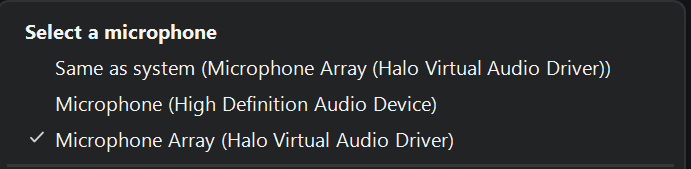
In Zoom, open Settings → Audio and set HaloVoice Virtual Microphone as your Microphone.
Test and join the meeting
Use Zoom's “Test Mic” to confirm the translated audio registers, then join your call as usual.
Why distributed teams meet with HaloVoice
Meetings default to one shared language, which quietly costs you the contributions of everyone less fluent in it. Translating at the microphone lets people present their thinking in the language they think in.
Everyone speaks their own language
Colleagues contribute in full instead of simplifying their point to fit a second language.
Keep your existing meetings
No new meeting link, no interpreter scheduling, no admin approval — Zoom just sees another microphone.
One setup, several platforms
The same virtual microphone works in Microsoft Teams, Google Meet, and other apps that let you pick an input device.
Start free
Try the full Zoom workflow on the free plan and upgrade when translated meetings become routine.
Zoom translation FAQ
Setup details for teams adding live voice translation to Zoom meetings.
How do I use a real-time translator in Zoom?
Install HaloVoice, click “Start Session”, then select HaloVoice Virtual Microphone as your Microphone in Zoom Settings → Audio.
Do other participants need to install anything?
No. They hear the translated audio through the normal meeting audio. Each person who wants to be translated runs HaloVoice themselves.
Does this work with Microsoft Teams and Google Meet?
Yes. Any app that lets you choose a microphone can use HaloVoice Virtual Microphone, including Teams, Google Meet, and Slack huddles.
Can I record a translated meeting?
Zoom's own recording captures whatever audio the meeting carries, so the translated voice is recorded like any other participant audio.
Which languages are supported?
HaloVoice supports 30+ popular languages, including English, Spanish, French, German, Japanese, Korean, Mandarin, Portuguese, and Arabic.
How much delay does translation add to a meeting?
HaloVoice is designed for low-latency conversation. Actual delay depends on your device, network, and language pair.
Ready to run meetings in every language?
Download HaloVoice, set it as your Zoom microphone, and join your next meeting.